

Microsoft, yayımladığı MS14-025 güvenlik bülteni ile özellikle sistem yöneticilerini yakından ilgilendiren önemli bir değişikliği duyurdu. Bu güncelleme ile birlikte Group Policy Preferences (GPP) içerisinde parola saklama özelliği tamamen kaldırılıyor. Bunun temel sebebi ise bu parolaların güvenli olmayan bir şekilde saklanıyor olması.

Neden Bu Değişiklik Yapıldı?
Group Policy Preferences üzerinden bazı yapılandırmalarda kullanıcı adı ve parola bilgileri saklanabiliyordu. Ancak bu parolalar, zayıf şifreleme yöntemleriyle (örneğin CPassword) tutulduğu için ciddi bir güvenlik açığı oluşturuyordu.
Microsoft, bu riski ortadan kaldırmak için:
- Parola alanlarını devre dışı bıraktı
- Mevcut parolalı GPO’ların güncellenmesini engelledi
- Yeni parola içeren GPP oluşturulmasını tamamen kaldırdı
Hangi GPP Bileşenleri Etkilendi?
Bu değişiklikten etkilenen başlıca GPP bileşenleri:
- Drive Maps (Ağ sürücü eşlemeleri)
- Local Users and Groups (Yerel kullanıcı ve gruplar)
- Scheduled Tasks (Zamanlanmış görevler)
- Services (Servisler)
- Data Sources (Veri kaynakları)
Artık bu bileşenlerde:
- Kullanıcı adı ve parola alanları pasif hale getirildi
- Mevcut kayıtlar sadece silinebilir veya devre dışı bırakılabilir
Ortamınıza Etkisi Ne Olacak?
Eğer ortamınızda GPP üzerinden:
- Local admin password dağıtımı
- Scheduled task credential kullanımı
- Drive map authentication
gibi yapılandırmalar varsa, bu güncelleme sonrası bu yapıların çalışmaması veya yönetilememesi söz konusu olabilir.
Alternatif Çözümler Neler?
Microsoft, bu değişiklik sonrası bazı alternatif yöntemler öneriyor:
- Local admin yönetimi için: Active Directory grupları kullanarak yetki verme
- Drive Map için: NTFS ve share permission ile erişim kontrolü
- Scheduled Tasks için: Local service account kullanımı
- Servisler için: Built-in account’lar (Local System vb.) kullanımı
Senaryo 1: Yerel kullanıcı yönetimi
Yerel Kullanıcı Yönetimi tercihi, bir bilgisayarda bilinen bir parolaya sahip yerel yöneticiler oluşturmak için sıklıkla kullanılır. Grup İlkesi Tercihleri’nin parolaları saklama şekli nedeniyle bu özellik güvenli değildir. Bu nedenle, bu işlev artık kullanılamamaktadır. Aşağıdaki tercihler etkilenmektedir:
- Computer Configuration -> Control Panel Settings -> Local Users and Groups-> New-> Local User
- User Configuration -> Control Panel Settings -> Local Users and Groups-> New-> Local User
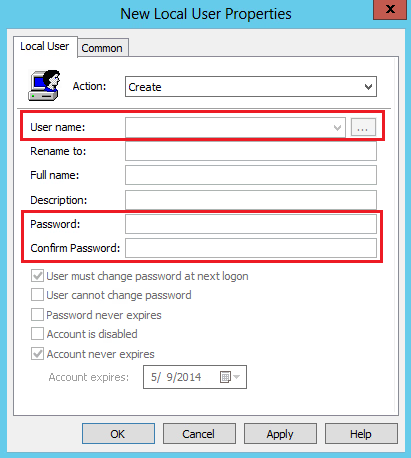
İşlem: Oluştur veya Değiştir
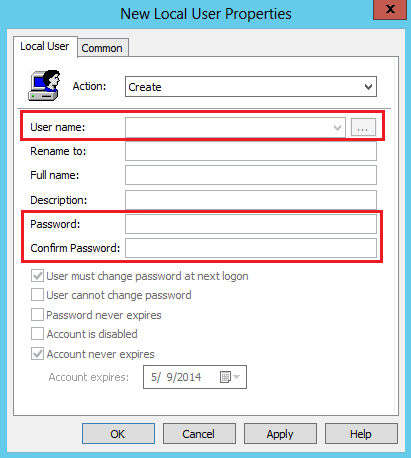
- Kullanıcı adı , Parola ve Parolayı Onayla alanları devre dışı bırakılmıştır.
- Yönetici, parola içeren mevcut bir tercih ayarını açtığında veya bu ayarda yapılan değişiklikleri kaydetmeye çalıştığında uyarı iletişim kutusu görünür.
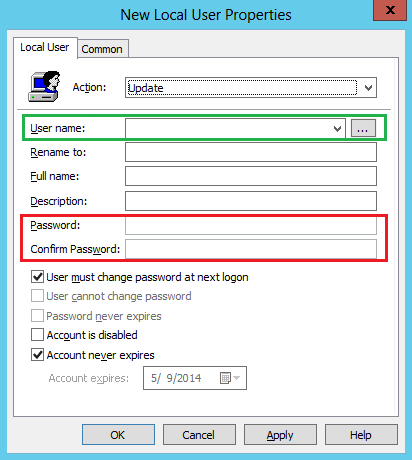
İşlem: Güncelle
- Parola ve Parolayı Onayla alanları devre dışı bırakılmıştır.
- Yönetici, parola içeren mevcut bir tercih ayarını açtığında veya bu ayarda yapılan değişiklikleri kaydetmeye çalıştığında uyarı iletişim kutusu görünür.
İşlem: Sil
- Davranışta değişiklik yok.
Geçici çözümler
Daha önce yerel yönetici parolalarını ayarlamak için Grup İlkesi Tercihi’ne güvenenler için, CPassword’e güvenli bir alternatif olarak aşağıdaki komut dosyası sağlanmıştır. İçeriği yeni bir Windows PowerShell dosyasına kopyalayıp kaydedin ve ardından komut dosyasını .EXAMPLE bölümünde belirtildiği gibi çalıştırın.
function Invoke-PasswordRoll
{
<#
.SYNOPSIS

This script can be used to set the local account passwords on remote machines to random passwords. The username/password/server combination will be saved in a CSV file.
The account passwords stored in the CSV file can be encrypted using a password of the administrators choosing to ensure clear-text account passwords aren't written to disk.
The encrypted passwords can be decrypted using another function in this file: ConvertTo-CleartextPassword


Function: Invoke-PasswordRoll
Author: Microsoft
Version: 1.0

.DESCRIPTION

This script can be used to set the local account passwords on remote machines to random passwords. The username/password/server combination will be saved in a CSV file.
The account passwords stored in the CSV file can be encrypted using a password of the administrators choosing to ensure clear-text account passwords aren't written to disk.
The encrypted passwords can be decrypted using another function in this file: ConvertTo-CleartextPassword

.PARAMETER ComputerName

An array of computers to run the script against using PowerShell remoting.

.PARAMETER LocalAccounts

An array of local accounts whose password should be changed.

.PARAMETER TsvFileName

The file to output the username/password/server combinations to.

.PARAMETER EncryptionKey

A password to encrypt the TSV file with. Uses AES encryption. Only the passwords stored in the TSV file will be encrypted, the username and servername will be clear-text.

.PARAMETER PasswordLength

The length of the passwords which will be randomly generated for local accounts.

.PARAMETER NoEncryption

Do not encrypt the account passwords stored in the TSV file. This will result in clear-text passwords being written to disk.

.EXAMPLE

. .\Invoke-PasswordRoll.ps1 #Loads the functions in this script file
Invoke-PasswordRoll -ComputerName (Get-Content computerlist.txt) -LocalAccounts @("administrator","CustomLocalAdmin") -TsvFileName "LocalAdminCredentials.tsv" -EncryptionKey "Password1"

Connects to all the computers stored in the file "computerlist.txt". If the local account "administrator" and/or "CustomLocalAdmin" are present on the system, their password is changed
to a randomly generated password of length 20 (the default). The username/password/server combinations are stored in LocalAdminCredentials.tsv, and the account passwords are AES encrypted using the password "Password1".

.EXAMPLE

. .\Invoke-PasswordRoll.ps1 #Loads the functions in this script file
Invoke-PasswordRoll -ComputerName (Get-Content computerlist.txt) -LocalAccounts @("administrator") -TsvFileName "LocalAdminCredentials.tsv" -NoEncryption -PasswordLength 40

Connects to all the computers stored in the file "computerlist.txt". If the local account "administrator" is present on the system, its password is changed to a random generated
password of length 40. The username/password/server combinations are stored in LocalAdminCredentials.tsv unencrypted.

.NOTES
Requirements:
-PowerShellv2 or above must be installed
-PowerShell remoting must be enabled on all systems the script will be run against

Script behavior:
-If a local account is present on the system, but not specified in the LocalAccounts parameter, the script will write a warning to the screen to alert you to the presence of this local account. The script will continue running when this happens.
-If a local account is specified in the LocalAccounts parameter, but the account does not exist on the computer, nothing will happen (an account will NOT be created).
-The function ConvertTo-CleartextPassword, contained in this file, can be used to decrypt passwords that are stored encrypted in the TSV file.
-If a server specified in ComputerName cannot be connected to, PowerShell will output an error message.
-Microsoft advises companies to regularly roll all local and domain account passwords.

#>
[CmdletBinding(DefaultParameterSetName="Encryption")]
Param(
[Parameter(Mandatory=$true)]
[String[]]
$ComputerName,

[Parameter(Mandatory=$true)]
[String[]]
$LocalAccounts,

[Parameter(Mandatory=$true)]
[String]
$TsvFileName,

[Parameter(ParameterSetName="Encryption", Mandatory=$true)]
[String]
$EncryptionKey,

[Parameter()]
[ValidateRange(20,120)]
[Int]
$PasswordLength = 20,

[Parameter(ParameterSetName="NoEncryption", Mandatory=$true)]
[Switch]
$NoEncryption
)


#Load any needed .net classes
Add-Type -AssemblyName "System.Web" -ErrorAction Stop


#This is the scriptblock that will be executed on every computer specified in ComputerName
$RemoteRollScript = {
Param(
[Parameter(Mandatory=$true, Position=1)]
[String[]]
$Passwords,

[Parameter(Mandatory=$true, Position=2)]
[String[]]
$LocalAccounts,

#This is here so I can record what the server name that the script connected to was, sometimes the DNS records get messed up, it can be nice to have this.
[Parameter(Mandatory=$true, Position=3)]
[String]
$TargettedServerName
)

$LocalUsers = Get-WmiObject Win32_UserAccount -Filter "LocalAccount=true" | Foreach {$_.Name}

#Check if the computer has any local user accounts whose passwords are not going to be rolled by this script
foreach ($User in $LocalUsers)
{
if ($LocalAccounts -inotcontains $User)
{
Write-Warning "Server: '$($TargettedServerName)' has a local account '$($User)' whos password is NOT being changed by this script"
}
}

#For every local account specified that exists on this server, change the password
$PasswordIndex = 0
foreach ($LocalAdmin in $LocalAccounts)
{
$Password = $Passwords[$PasswordIndex]

if ($LocalUsers -icontains $LocalAdmin)
{
try
{
$objUser = [ADSI]"WinNT://localhost/$($LocalAdmin), user"
$objUser.psbase.Invoke("SetPassword", $Password)

$Properties = @{
TargettedServerName = $TargettedServerName
Username = $LocalAdmin
Password = $Password
RealServerName = $env:computername
}

$ReturnData = New-Object PSObject -Property $Properties
Write-Output $ReturnData
}
catch
{
Write-Error "Error changing password for user:$($LocalAdmin) on server:$($TargettedServerName)"
}
}

$PasswordIndex++
}
}


#Generate the password on the client running this script, not on the remote machine. System.Web.Security isn't available in the .NET Client profile. Making this call
# on the client running the script ensures only 1 computer needs the full .NET runtime installed (as opposed to every system having the password rolled).
function Create-RandomPassword
{
Param(
[Parameter(Mandatory=$true)]
[ValidateRange(20,120)]
[Int]
$PasswordLength
)

$Password = [System.Web.Security.Membership]::GeneratePassword($PasswordLength, $PasswordLength / 4)

#This should never fail, but I'm putting a sanity check here anyways
if ($Password.Length -ne $PasswordLength)
{
throw new Exception("Password returned by GeneratePassword is not the same length as required. Required length: $($PasswordLength). Generated length: $($Password.Length)")
}

return $Password
}


#Main functionality - Generate a password and remote in to machines to change the password of local accounts specified
if ($PsCmdlet.ParameterSetName -ieq "Encryption")
{
try
{
$Sha256 = new-object System.Security.Cryptography.SHA256CryptoServiceProvider
$SecureStringKey = $Sha256.ComputeHash([System.Text.UnicodeEncoding]::Unicode.GetBytes($EncryptionKey))
}
catch
{
Write-Error "Error creating TSV encryption key" -ErrorAction Stop
}
}

foreach ($Computer in $ComputerName)
{
#Need to generate 1 password for each account that could be changed
$Passwords = @()
for ($i = 0; $i -lt $LocalAccounts.Length; $i++)
{
$Passwords += Create-RandomPassword -PasswordLength $PasswordLength
}

Write-Output "Connecting to server '$($Computer)' to roll specified local admin passwords"
$Result = Invoke-Command -ScriptBlock $RemoteRollScript -ArgumentList @($Passwords, $LocalAccounts, $Computer) -ComputerName $Computer
#If encryption is being used, encrypt the password with the user supplied key prior to writing to disk
if ($Result -ne $null)
{
if ($PsCmdlet.ParameterSetName -ieq "NoEncryption")
{
$Result | Select-Object Username,Password,TargettedServerName,RealServerName | Export-Csv -Append -Path $TsvFileName -NoTypeInformation
}
else
{
#Filters out $null entries returned
$Result = $Result | Select-Object Username,Password,TargettedServerName,RealServerName

foreach ($Record in $Result)
{
$PasswordSecureString = ConvertTo-SecureString -AsPlainText -Force -String ($Record.Password)
$Record | Add-Member -MemberType NoteProperty -Name EncryptedPassword -Value (ConvertFrom-SecureString -Key $SecureStringKey -SecureString $PasswordSecureString)
$Record.PSObject.Properties.Remove("Password")
$Record | Select-Object Username,EncryptedPassword,TargettedServerName,RealServerName | Export-Csv -Append -Path $TsvFileName -NoTypeInformation
}
}
}
}
}


function ConvertTo-CleartextPassword
{
<#
.SYNOPSIS
This function can be used to decrypt passwords that were stored encrypted by the function Invoke-PasswordRoll.

Function: ConvertTo-CleartextPassword
Author: Microsoft
Version: 1.0

.DESCRIPTION
This function can be used to decrypt passwords that were stored encrypted by the function Invoke-PasswordRoll.


.PARAMETER EncryptedPassword

The encrypted password that was stored in a TSV file.

.PARAMETER EncryptionKey

The password used to do the encryption.


.EXAMPLE

. .\Invoke-PasswordRoll.ps1 #Loads the functions in this script file
ConvertTo-CleartextPassword -EncryptionKey "Password1" -EncryptedPassword 76492d1116743f0423413b16050a5345MgB8AGcAZgBaAHUAaQBwADAAQgB2AGgAcABNADMASwBaAFoAQQBzADEAeABjAEEAPQA9AHwAZgBiAGYAMAA1ADYANgA2ADEANwBkADQAZgAwADMANABjAGUAZQAxAGIAMABiADkANgBiADkAMAA4ADcANwBhADMAYQA3AGYAOABkADcAMQA5ADQAMwBmAGYANQBhADEAYQBjADcANABkADIANgBhADUANwBlADgAMAAyADQANgA1ADIAOQA0AGMAZQA0ADEAMwAzADcANQAyADUANAAzADYAMAA1AGEANgAzADEAMQA5ADAAYwBmADQAZAA2AGQA"

Decrypts the encrypted password which was stored in the TSV file.

#>
Param(
[Parameter(Mandatory=$true)]
[String]
$EncryptedPassword,

[Parameter(Mandatory=$true)]
[String]
$EncryptionKey
)

$Sha256 = new-object System.Security.Cryptography.SHA256CryptoServiceProvider
$SecureStringKey = $Sha256.ComputeHash([System.Text.UnicodeEncoding]::Unicode.GetBytes($EncryptionKey))

[SecureString]$SecureStringPassword = ConvertTo-SecureString -String $EncryptedPassword -Key $SecureStringKey
Write-Output ([System.Runtime.InteropServices.Marshal]::PtrToStringAuto([System.Runtime.InteropServices.Marshal]::SecureStringToCoTaskMemUnicode($SecureStringPassword)))
}
Bu işlem, Active Directory grubu oluşturarak ve bunu Grup İlkesi Tercihleri -> Yerel Grup aracılığıyla yerel Yöneticiler grubuna ekleyerek bilgisayarlara yerel yönetici hesapları ekleyebilirler. Bu işlem kimlik bilgilerini önbelleğe almaz. Diyalog kutusu aşağıdaki gibidir. Bu geçici çözüm, kullanıcının bu kimlik bilgileriyle oturum açtığında Active Directory Etki Alanı Hizmetlerine bağlantı gerektirir.
Senaryo 2: MAP sürücüler
Kullanıcılara ağ konumları atamak için sürücü eşlemelerini kullanır. Parola koruma özelliği, sürücüye yetkili erişimin sağlanması için kullanılır. Aşağıdaki tercihler etkilenir:
User Configuration -> Windows Settings -> Drive Maps -> New -> Mapped Drive
Önemli değişiklikler
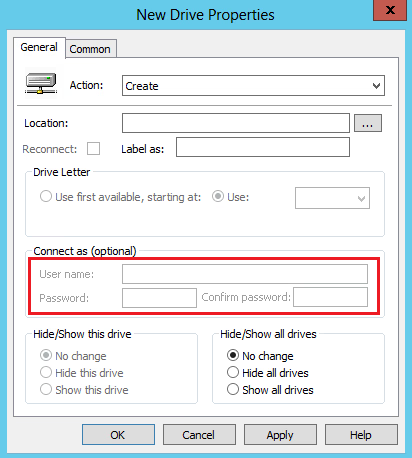
İşlem: Oluştur, Güncelle veya Değiştir
- Kullanıcı adı , Parola ve Parolayı onayla alanları devre dışı bırakılmıştır.
İşlem: Sil
- Davranışta değişiklik yok.
Geçici çözümler
Kimlik doğrulama için parola yöntemini kullanmak yerine, paylaşım izinlerini yönetmek ve kullanıcılara haklar atamak için Windows Gezgini’ni kullanabilirsiniz. Klasöre erişim izinlerini kontrol etmek için Active Directory nesnelerini kullanabilirsiniz.
Senaryo 3: Servisler
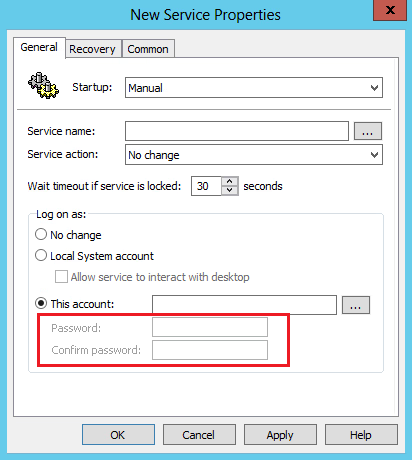
Servis tercihini kullanarak, hizmet özelliklerini orijinal güvenlik bağlamlarından farklı bir bağlamda çalışacak şekilde değiştirebilirsiniz. Aşağıdaki tercihler etkilenir:
Computer Configuration -> Control Panel Settings -> Services -> New -> Service
Önemli değişiklikler
Başlangıç: Değişiklik Yok, Otomatik veya Manuel
- Parola ve Parolayı Onayla alanları devre dışı bırakılmıştır.
- Yönetici yalnızca yerleşik hesapları kullanabilir.
Başlangıç: Devre dışı bırak
- Davranışta değişiklik yok.
Yeni iletişim kutusu
- “Bu hesap için yerleşik olmayan kullanıcıları kullanmaya çalışan yöneticiler aşağıdaki uyarıyı alırlar:
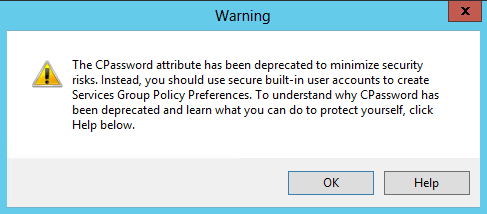
Servisler hala yerel sistem hesabı olarak çalıştırılabilir. Hizmet izinleri, Microsoft Bilgi Bankası’ndaki aşağıdaki makalede belgelendiği gibi değiştirilebilir:
256345 Sistem hizmetleri için güvenlik ayarlarını yapılandırmak üzere Grup İlkesi ayarlarını nasıl yapılandırabilirsiniz?
Not: Yapılandırmak istediğiniz hizmet mevcut değilse, ayarları hizmetin çalıştığı bir bilgisayarda yapılandırmanız gerekir.
Senaryo 4: Planlanmış görevler
Bunlar, belirli bir güvenlik bağlamında zamanlanmış görevleri çalıştırmak için kullanılır. Zamanlanmış görevlerin, oturum açmamış bir kullanıcı adına çalıştırılması için kimlik bilgilerini saklama özelliği artık mevcut değildir. Aşağıdaki tercihler etkilenir. (Bazı platformlarda “En az Windows 7” ifadesinin “Windows Vista ve sonrası” ile değiştirildiğini lütfen unutmayın.)
- Computer Configuration -> Control Panel Settings -> Scheduled Tasks -> New -> Scheduled Task (At least Windows 7)
- Computer Configuration -> Control Panel Settings -> Scheduled Tasks -> New -> Immediate Task (At least Windows 7)
- User Configuration -> Control Panel Settings -> Scheduled Tasks -> New -> Scheduled Task (At least Windows 7)
- User Configuration -> Control Panel Settings -> Scheduled Tasks -> New -> Immediate Task (At least Windows 7)
Önemli değişiklikler
İşlem: Oluştur, Güncelle veya Değiştir
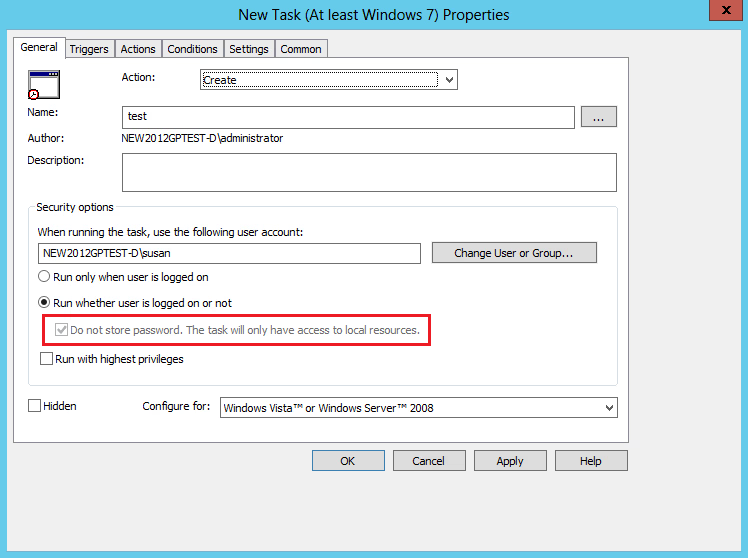
- “Run whether user is logged on or not çalıştır” seçeneğini seçtiğinizde , yöneticiye kimlik bilgilerini girmesi için artık bir iletişim kutusu gösterilmeyecektir.
- “Do not store password” onay kutusu devre dışı bırakılmıştır. Varsayılan olarak, bu kutu da işaretlidir.
Önemli değişiklikler
İşlem: Oluştur, Güncelle veya Değiştir
- Run as” onay kutusu devre dışı bırakılmıştır. Bu nedenle, Kullanıcı Adı , Parola ve Parolayı Onayla alanlarının tümü devre dışıdır.
Eylem: Sil
Davranışta değişiklik yok
Geçici çözümler
“Zamanlanmış Görev” ve “Anlık Görev (Windows XP)” öğeleri için, zamanlanmış görevler, yerel hizmete şu anda mevcut olan izinler kullanılarak çalıştırılır.
Senaryo 6: Data Sources
Veri Kaynakları tercihi, bir veri kaynağını bir bilgisayar veya kullanıcıyla ilişkilendirmek için kullanılır. Bu özellik artık parola ile korunan veri kaynaklarına erişimi sağlamak için kimlik bilgilerini saklamaz. Aşağıdaki tercihler etkilenir:
- Computer Configuration -> Control Panel Settings -> Data Sources
- User Configuration -> Control Panel Settings -> Data Sources
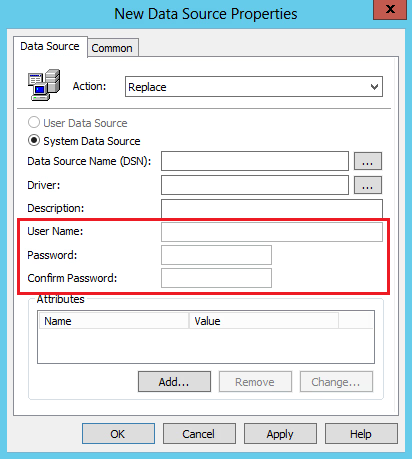
Önemli Değişiklikler
İşlem: Oluştur, Güncelle veya Değiştir
- Kullanıcı Adı , Parola ve Parolayı Onayla alanları devre dışı bırakılmıştır:
İşlem: Sil
- Davranışta değişiklik yok.
Geçici çözümler
Alternatif bir çözüm yolu bulunmamaktadır. Bu tercih, parola ile korunan veri kaynaklarına erişime izin vermek için kimlik bilgilerini artık saklamamaktadır.
Ortamda Riskli GPO’lar Nasıl Tespit Edilir?
Microsoft, ortamınızda hala CPassword içeren GPO’ları tespit edebilmeniz için PowerShell scripti de paylaşıyor. Bu script sayesinde:
- SYSVOL içerisindeki XML dosyaları taranır
- Parola içeren GPP’ler listelenir
- Temizlenmesi gereken GPO’lar belirlenir
<#
.SYNOPSIS
Group Policy objects in your domain can have preferences that store passwords for different tasks, such as the following:
1. Data Sources
2. Drive Maps
3. Local Users
4. Scheduled Tasks (both XP and up-level)
5. Services
These passwords are stored in SYSVOL as part of GP preferences and are not secure because of weak encryption (32-byte AES).
Therefore, we recommend that you not deploy such preferences in your domain environment and remove any such existing
preferences. This script is to help administrator find GP Preferences in their domain's SYSVOL that contains passwords.

.DESCRIPTION
This script should be run on a DC or a client computer that is installed with RSAT to print all the preferences that contain
password with information such as GPO, Preference Name, GPEdit path under which this preference is defined.
After you have a list of affected preferences, these preferences can be removed by using the editor in the Group Policy Management Console.

.SYNTAX
Get-SettingsWithCPassword.ps1 [-Path <String>]
.EXAMPLE
Get-SettingsWithCPassword.ps1 -Path %WinDir%\SYSVOL\domain
Get-SettingsWithCPassword.ps1 -Path <GPO Backup Folder Path>

.NOTES
If Group Policy PS module is not found the output will contain GPO GUIDs instead of GPO names. You can either run
this script on a domain controller or rerun the script on the client after you have installed RSAT and
enabled the Group Policy module.
Or, you can use GPO GUIDs to obtain GPO names by using the Get-GPO cmdlet.

.LINK
http://go.microsoft.com/fwlink/?LinkID=390507

#>
#----------------------------------------------------------------------------------------------------------------
# Input parameters
#--------------------------------------------------------------------------------------------------------------
param(
[string]$Path = $(throw "-Path is required.") # Directory path where GPPs are located.
)
#---------------------------------------------------------------------------------------------------------------
$isGPModuleAvailable = $false
$impactedPrefs = { "Groups.xml", "ScheduledTasks.xml","Services.xml", "DataSources.xml", "Drives.xml" }
#----------------------------------------------------------------------------------------------------------------
# import Group olicy module if available
#----------------------------------------------------------------------------------------------------------------
if (-not (Get-Module -name "GroupPolicy"))
{
if (Get-Module -ListAvailable |
Where-Object { $_.Name -ieq "GroupPolicy" })
{
$isGPModuleAvailable = $true
Import-Module "GroupPolicy"
}
else
{
Write-Warning "Unable to import Group Policy module for PowerShell. Therefore, GPO guids will be reported.
Run this script on DC to obtain the GPO names, or use the Get-GPO cmdlet (on DC) to obtain the GPO name from GPO guid."
}
}
else
{
$isGPModuleAvailable = $true
}
Function Enum-SettingsWithCpassword ( [string]$sysvolLocation )
{
# GPMC tree paths
$commonPath = " -> Preferences -> Control Panel Settings -> "
$driveMapPath = " -> Preferences -> Windows Settings -> "

# Recursively obtain all the xml files within the SYVOL location
$impactedXmls = Get-ChildItem $sysvolLocation -Recurse -Filter "*.xml" | Where-Object { $impactedPrefs -cmatch $_.Name }


# Each xml file contains multiple preferences. Iterate through each preference to check whether it
# contains cpassword attribute and display it.
foreach ( $file in $impactedXmls )
{
$fileFullPath = $file.FullName

# Set GPP category. If file is located under Machine folder in SYSVOL
# the setting is defined under computer configuration otherwise the
# setting is a to user configuration
if ( $fileFullPath.Contains("Machine") )
{
$category = "Computer Configuration"
}
elseif ( $fileFullPath.Contains("User") )
{
$category = "User Configuration"
}
else
{
$category = "Unknown"
}
# Obtain file content as XML
try
{
[xml]$xmlFile = get-content $fileFullPath -ErrorAction Continue
}
catch [Exception]{
Write-Host $_.Exception.Message
}
if ($xmlFile -eq $null)
{
continue
}
switch ( $file.BaseName )
{
Groups
{
$gppWithCpassword = $xmlFile.SelectNodes("Groups/User") | where-Object { [String]::IsNullOrEmpty($_.Properties.cpassword) -eq $false }
$preferenceType = "Local Users"
}
ScheduledTasks
{
$gppWithCpassword = $xmlFile.SelectNodes("ScheduledTasks/*") | where-Object { [String]::IsNullOrEmpty($_.Properties.cpassword) -eq $false }
$preferenceType = "Scheduled Tasks"
}
DataSources
{
$gppWithCpassword = $xmlFile.SelectNodes("DataSources/DataSource") | where-Object { [String]::IsNullOrEmpty($_.Properties.cpassword) -eq $false }
$preferenceType = "Data sources"
}
Drives
{
$gppWithCpassword = $xmlFile.SelectNodes("Drives/Drive") | where-Object { [String]::IsNullOrEmpty($_.Properties.cpassword) -eq $false }
$preferenceType = "Drive Maps"
}
Services
{
$gppWithCpassword = $xmlFile.SelectNodes("NTServices/NTService") | where-Object { [String]::IsNullOrEmpty($_.Properties.cpassword) -eq $false }
$preferenceType = "Services"
}
default
{ # clear gppWithCpassword and preferenceType for next item.
try
{
Clear-Variable -Name gppWithCpassword -ErrorAction SilentlyContinue
Clear-Variable -Name preferenceType -ErrorAction SilentlyContinue
}
catch [Exception]{}
}
}
if ($gppWithCpassword -ne $null)
{
# Build GPO name from GUID extracted from filePath
$guidRegex = [regex]"\{(.*)\}"
$match = $guidRegex.match($fileFullPath)
if ($match.Success)
{
$gpoGuid = $match.groups[1].value
$gpoName = $gpoGuid
}
else
{
$gpoName = "Unknown"
}
if($isGPModuleAvailable -eq $true)
{
try
{
$gpoInfo = Get-GPO -Guid $gpoGuid -ErrorAction Continue
$gpoName = $gpoInfo.DisplayName
}
catch [Exception] {
Write-Host $_.Exception.Message
}
}
# display prefrences that contain cpassword
foreach ( $gpp in $gppWithCpassword )
{
if ( $preferenceType -eq "Drive Maps" )
{
$prefLocation = $category + $driveMapPath + $preferenceType
}
else
{
$prefLocation = $category + $commonPath + $preferenceType
}
$obj = New-Object -typeName PSObject
$obj | Add-Member –membertype NoteProperty –name GPOName –value ($gpoName) –passthru |
Add-Member -MemberType NoteProperty -name Preference -value ($gpp.Name) -passthru |
Add-Member -MemberType NoteProperty -name Path -value ($prefLocation)
Write-Output $obj
}
} # end if $gppWithCpassword
} # end foreach $file
} # end functions Enum-PoliciesWithCpassword
#-----------------------------------------------------------------------------------
# Check whether Path is valid. Enumerate all settings that contain cpassword.
#-----------------------------------------------------------------------------------
if (Test-Path $Path )
{
Enum-SettingsWithCpassword $Path
}
else
{
Write-Warning "No such directory: $Path"
}
Kullanımı
.\Get-SettingsWithCPassword.ps1 –path “C:\Windows\SYSVOL\domain” | Format-List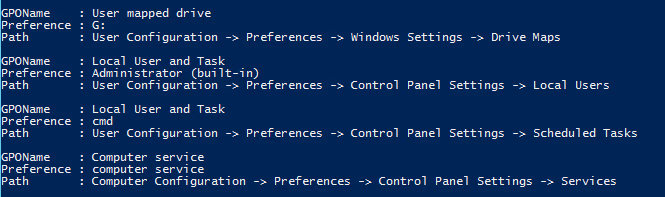
Eğer ortamınızda hâlâ bu yapı kullanılıyorsa, acil aksiyon almanız ve alternatif yöntemlere geçmeniz gerekiyor.







Eline sağlık.